Wiping the Local LLM Setup on My Ryzen AI PC Clean
Introduction
A while ago, I tested whether a local LLM could run at a usable speed on an AMD Ryzen AI laptop, and built a setup with Lemonade Server and Qwen. And it did work.
But that was almost half a year ago. In the meantime, I ended up in the usual “piled-up” state:
- I downloaded models every time I tried one, and never deleted them
- The inference backend settings were still whatever I’d landed on through trial and error back then
- Config files were left behind for tools I thought I had already uninstalled
Now that I’m rebuilding with a newer approach, there’s nothing to gain by stacking it on top of all this. I decided to wipe everything once and rebuild from scratch, and this post covers that cleanup.
I’m planning about five posts in this series. This one (part 1) is the cleanup; from the next one I’ll move on to designing and building the new setup.
The Machine
| Item | Details |
|---|---|
| CPU | AMD Ryzen AI 9 HX 370 (12 cores / 24 threads) |
| iGPU | AMD Radeon 890M |
| NPU | XDNA2 |
| Memory | 96 GB |
| OS | Windows 11 Pro |
| Driver | AMD Software 26.8.1 |
The 96 GB of memory is the key to this configuration: even without a discrete GPU, you can fit fairly large models entirely in memory.
Start with an Inventory
Before deleting anything, I checked what’s actually left. If you go deleting from memory alone, you usually either miss something or delete something you shouldn’t.
Finding Installed Software
$paths = @(
  'HKLM:\SOFTWARE\Microsoft\Windows\CurrentVersion\Uninstall\*',
  'HKLM:\SOFTWARE\WOW6432Node\Microsoft\Windows\CurrentVersion\Uninstall\*',
  'HKCU:\SOFTWARE\Microsoft\Windows\CurrentVersion\Uninstall\*'
)
Get-ItemProperty $paths -ErrorAction SilentlyContinue |
  Where-Object { $_.DisplayName -match 'lemonade|ollama|LM Studio|ROCm|Ryzen AI|llama' } |
  Select-Object DisplayName, DisplayVersion, UninstallString | Format-List
The only thing left was Lemonade Server 11.5.1.
Checking Running Processes and Ports
Get-Process | Where-Object { $_.Name -match 'lemonade|ollama|llama|ryzenai' } |
  Select-Object Name, Id, Path
LemonadeServer.exe was running in the background, and it was even set to start automatically.
Then one thing tripped me up: the port.
Requests to http://localhost:8000 got no response. Reading the config:
Get-Content "$env:USERPROFILE\.cache\lemonade\config.json" | ConvertFrom-Json |
  Select-Object port, host
It was port: 13305. No wonder hitting 8000, as in my earlier post, didn’t connect.
(Invoke-RestMethod 'http://localhost:13305/api/v1/models').data | Select-Object idFive models were registered.
Gemma-4-E4B-it-GGUF
Qwen3-8B-Hybrid
Qwen3.6-35B-A3B-GGUF
Qwen3.6-35B-A3B-MTP-GGUF
Qwen3.6-35B-A3B-MTP-ThinkingCoder   ← 自分で作ったカスタム定義
(The last one is a custom definition I made myself.)
Finding What Eats Up the Space
This is the main part.
Get-ChildItem "$env:USERPROFILE\.cache\huggingface\hub" -Directory | ForEach-Object {
  $sz = (Get-ChildItem $_.FullName -Recurse -File -EA SilentlyContinue |
         Measure-Object Length -Sum).Sum / 1GB
  "{0,10:N2} GB  {1}" -f $sz, $_.Name
} | Sort-Object -Descending| Size | Repository |
|---|---|
| 22.12 GB | unsloth/Qwen3.6-35B-A3B-MTP-GGUF |
| 21.66 GB | unsloth/Qwen3.6-35B-A3B-GGUF |
| 9.47 GB | unsloth/Qwen3.6-27B-MTP-GGUF |
| 8.77 GB | amd/Qwen3-8B-awq-quant-onnx-ryzenai-1.7-hybrid |
| 5.56 GB | unsloth/gemma-4-E4B-it-GGUF |
67.58 GB in total. The 35B GGUFs take up 43 GB across two repositories, and they’re nearly duplicates. They were from when I compared “which is faster, the MTP version or the regular one?”, and after the comparison I just left both.
On top of that, there are the inference backends Lemonade downloaded by itself.
Get-ChildItem "$env:USERPROFILE\.cache\lemonade\bin" | ForEach-Object {
  $sz = (Get-ChildItem $_.FullName -Recurse -File -EA SilentlyContinue |
         Measure-Object Length -Sum).Sum / 1MB
  "{0,8:N0} MB  {1}" -f $sz, $_.Name
}
1079 MB ryzenai-server
156 MB llamacppThe uninstaller doesn’t remove these. You have to delete them by hand.
Putting the inventory together, here’s what I found.
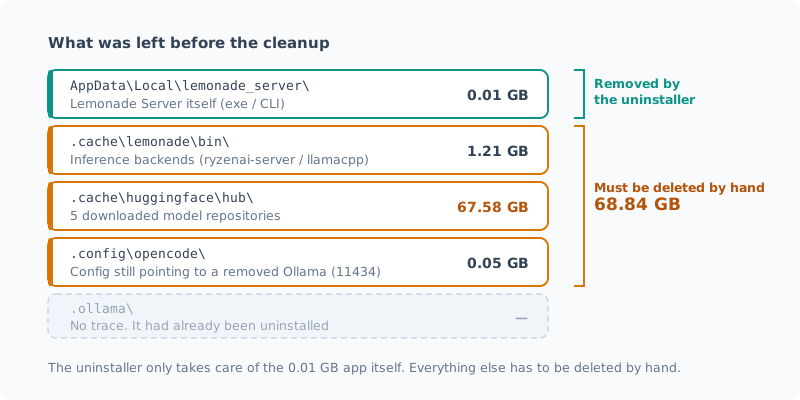
The uninstaller takes care of only the 0.01 GB at the top. The remaining 68.84 GB is up to me.
Let’s also look at the breakdown of the models.
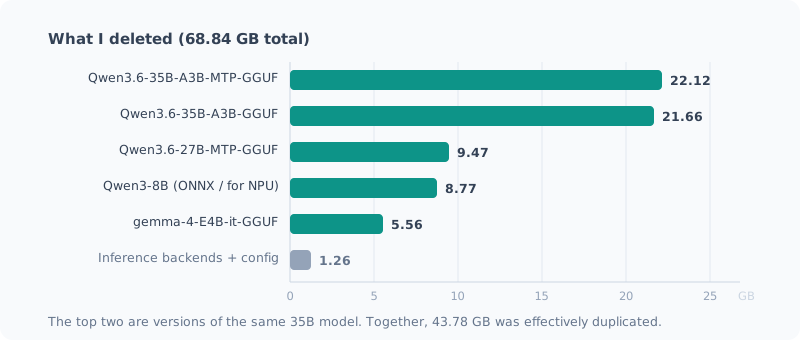
The top two are what really count. Both are the same Qwen3.6 35B, one MTP version and one regular. Together, 43.78 GB was effectively duplicated.
Three Things the Inventory Revealed
1. Ollama Was Already Gone
I thought I had installed Ollama last time, but there wasn’t a trace of it.
foreach ($d in "$env:USERPROFILE\.ollama",
               "$env:LOCALAPPDATA\Programs\Ollama",
               "$env:APPDATA\Ollama") { "{0}: {1}" -f $d, (Test-Path $d) }
Get-Command ollama -ErrorAction SilentlyContinue
All False, and no command either. I had uninstalled it at some point.
A good example of why not deleting from memory was the right call.
2. It Was Still Running Inference on the CPU
I noticed this while reading config.json.
"llamacpp": {
  "backend": "cpu",
  ...
}
Despite having a Radeon 890M and an NPU, I was running llama.cpp with the CPU backend. Thanks to the 96 GB of memory, 35B-class models ran anyway, so it had been left alone with a “well, it works” attitude.
This became the main motivation for building the new setup.
3. Dead Config Was Left Behind
~/.config/opencode/opencode.json was still pointing to an Ollama that no longer existed.
{
  "provider": {
    "ollama": {
      "options": { "baseURL": "http://127.0.0.1:11434/v1" }
    }
  },
  "model": "ollama/qwen3.6:27b"
}
The only real harm is “it starts but can’t connect,” but this is on the cleanup list too.
Cleanup Steps
0. Back Up Before Deleting
I set aside only the settings I had tuned myself.
In particular, user_models.json and recipe_options.json hold the sampling parameters I had dialed in,
so it would be a shame to lose them.
$backup = "$env:USERPROFILE\Desktop\llm-backup"
New-Item -ItemType Directory -Force -Path $backup | Out-Null
Copy-Item "$env:USERPROFILE\.cache\lemonade\*.json" $backup
1. Stop the Server
If it keeps running, it holds files open and the uninstall fails.
Get-Process LemonadeServer -ErrorAction SilentlyContinue | Stop-Process -Force2. Uninstall Lemonade Server
It’s an MSI, so msiexec can remove it. The product code is in the
UninstallString I looked up during the inventory.
Start-Process msiexec.exe -ArgumentList '/X{プロダクトコード} /quiet /norestart' -Wait(Replace {プロダクトコード} with the product code.) Going through Settings > Apps > Installed apps does the same thing.
3. Delete the Backends and Config
This is the 1.2 GB the uninstaller leaves behind.
Remove-Item "$env:USERPROFILE\.cache\lemonade" -Recurse -Force4. Delete the Model Cache
This is the step that makes the biggest difference. 67.6 GB.
Remove-Item "$env:USERPROFILE\.cache\huggingface" -Recurse -ForceI hesitated over whether to delete everything, but I wiped it all. For two reasons:
- The 35B GGUFs are effectively duplicates, so there’s no point deciding now which one to keep
- The ONNX version targets
ryzenai-1.7, and the supported version is likely to change in the new setup
If your connection is slow, you could keep just Qwen3.6-35B-A3B-MTP-GGUF (22 GB).
5. Remove Leftover Auto-Start Entries
$lnk = "$env:APPDATA\Microsoft\Windows\Start Menu\Programs\Startup\Lemonade Server.lnk"
if (Test-Path $lnk) { Remove-Item $lnk -Force }
…or so I braced myself, but this turned out to be unnecessary.
The uninstaller in step 2 had already removed the shortcut,
and when I checked, it already returned False.
Leaving the 1.2 GB of backends but deleting the shortcut is pretty hard-to-predict behavior. In the end, the only way to know what an uninstaller removes and what it leaves is to actually check.
6. Delete the Dead Config
Remove-Item "$env:USERPROFILE\.config\opencode" -Recurse -Force7. Verify
foreach ($d in "$env:USERPROFILE\.cache\lemonade",
               "$env:USERPROFILE\.cache\huggingface",
               "$env:LOCALAPPDATA\lemonade_server",
               "$env:USERPROFILE\.ollama",
               "$env:USERPROFILE\.config\opencode") {
  "{0,-60} {1}" -f $d, (Test-Path $d)
}
Get-Command lemonade, ollama -ErrorAction SilentlyContinue
Here’s the actual result.
C:\Users\<user>\.cache\lemonade                                False
C:\Users\<user>\.cache\huggingface                             False
C:\Users\<user>\AppData\Local\lemonade_server                  False
C:\Users\<user>\.ollama                                        False
C:\Users\<user>\.config\opencode                               False
The lemonade / ollama / llama-server commands returned nothing,
and none of the ports 13305 / 11434 / 8000 were listening. Zero related processes, too.
As far as cleanup goes, it’s done.
I Couldn’t Measure the Freed Space
Since it all went cleanly, I planned to finish with “this is how much space I freed.” But when I looked at the numbers:
掃除前: 1277.4 GB 空き
掃除後: 1125.9 GB 空き
(Before the cleanup: 1277.4 GB free; after: 1125.9 GB free.)
It had dropped by about 150 GB. I should have deleted 69 GB, but it went the other way.
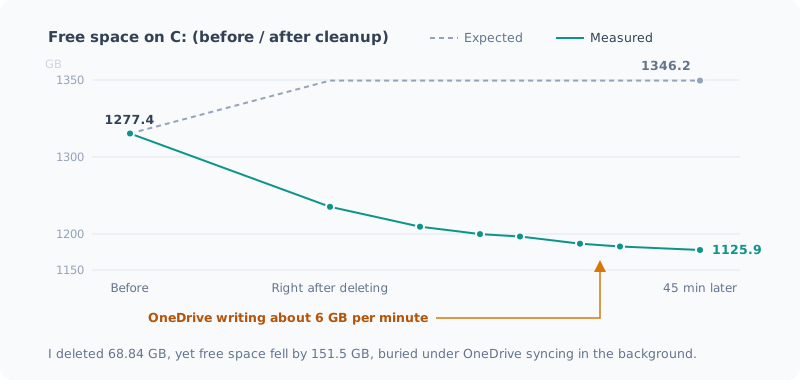
The folders were definitely all gone. So what was this number? I looked into it.
First I measured the free space every 10 seconds, and it kept going down steadily.
11:02:57  空き 1,134.2 GB
11:03:09  空き 1,133.2 GB
11:03:21  空き 1,131.9 GB
11:03:34  空き 1,130.5 GB
About 6 GB per minute. Something unrelated to the cleanup kept writing.
I ruled out the candidates one by one.
- Recycle Bin →
0.09 GB. Naturally, sinceRemove-Itemdoesn’t go through the Recycle Bin - Windows Update staging (
SoftwareDistribution\Download) →0 GB - Docker’s
docker_data.vhdx→ 45.54 GB, but it hadn’t grown when I measured again
That left processes. I took the difference in bytes written.
$s1 = Get-CimInstance Win32_PerfRawData_PerfProc_Process
Start-Sleep -Seconds 15
$s2 = Get-CimInstance Win32_PerfRawData_PerfProc_Process
# IOWriteBytesPersec の差分を取って上位を見る
(The comment means: take the difference in IOWriteBytesPersec and look at the top entries.)
The culprit was explorer.exe, about 900 MB in 15 seconds.
It was OneDrive’s sync engine, endlessly writing files back in the background.
So the answer was that the 69 GB the cleanup freed was buried under even more OneDrive writes. I can’t show it as a before / after number.
If I wanted the change in disk space to be a number in a post, I should have stopped OneDrive, Docker and Windows Update before measuring. Noting down the sizes of the folders before deleting them was the right move: in the end, the only way to show “how many GB I deleted” is to add those up (67.58 + 1.21 + 0.05 GB).
What Not to Delete
These are things that easily get caught up in a cleanup, so I explicitly decided to keep them.
| Keep | Reason |
|---|---|
| AMD Software 26.8.1 | The GPU driver itself. The NPU driver is included here too |
| NPU Compute Accelerator Device | The device itself. Don’t disable it in Device Manager |
| Docker Desktop | I use it for other things |
| Microsoft Store Python | Not something I installed for local LLMs |
AMD Software in particular: if you go to remove it “while I’m at it, reinstalling the ROCm bits,” you take your display down with it. Keep the driver as a prerequisite for the new setup, and you’re fine.
Summary
Here’s what I learned this time:
- Take inventory first. Ollama was already gone, and the port wasn’t what I remembered
- You can’t predict what an uninstaller leaves behind. It left 1.2 GB of backends but removed the startup shortcut
- Read config files before deleting them. That’s where I found I was still on CPU inference, the main reason for building the next setup
- Note the sizes before deleting. The before / after free space was buried under OneDrive syncing and was useless
- I deleted 68.8 GB in total (models 67.58 + backends 1.21 + config 0.05)
Next time, starting from this empty state, I’ll begin by considering which inference backend and model to choose. How should I split work between the iGPU (Vulkan / ROCm) and the NPU? And with 96 GB of memory, is staying on CPU inference actually faster? I’ll decide those while actually measuring.
Related Posts
How I Made the Local LLM on My Ryzen AI PC 7 Times Faster (llama.cpp + Vulkan + Qwen)
I rebuilt the local LLM setup on my freshly wiped Ryzen AI 9 HX 370 machine with llama.cpp and Vulkan: about 7 times faster than CPU inference. Here's how picking the newest model backfired, and measurements showing the bigger file was faster.
Why I Didn't Use the Ryzen AI NPU
I've been running local LLMs on a machine with a 50 TOPS NPU, but I've never used the NPU. When I looked into whether I could, I found there's no guarantee it runs, it's slower than the iGPU even if it does, and its biggest advantage doesn't apply to how I use it. A record of stopping right after downloading the installer.
How Much Memory Does a Local LLM Need? Measured on a Mini PC with 96GB
I ran a local LLM on a Ryzen AI mini PC with 96GB of memory and measured how many GB it actually uses. A 35B MoE model takes 24GiB, and even with the context stretched to its 256K limit, it stays around 28GiB. I sort out what 32GB, 64GB and 96GB are each likely to handle, keeping measurements and estimates apart.