Setting Up a System for Drawing My Tech Blog's Figures in SVG
Introduction
While writing the local LLM series, I ended up with 16 figures.
At first I made each one on the spot, but I kept going through the same hesitations, so I decided to write them down as rules. How to pick colors, how many px the text should be, and whether a figure belongs there at all.
This post records those rules and the mistakes I made before settling on them.
Why SVG
Every figure is hand-written SVG. I don’t use any drawing tool.
- It’s text, so diffs are readable. When I change one number, git shows what changed
- It’s version-controlled together with the post
- It doesn’t break when scaled up
- I’m not tied to a drawing tool’s file format
The trade-off is that I have to calculate the coordinates myself. That turned out to be exactly where I made the most mistakes this time.
Deciding Where Figures Live
I followed the conventions of the static site generator I use (Astro):
public/img/blogs/<記事のファイル名.md>/<図の名前>.svgPosts reference them like this:
Existing posts already included the .md in the folder name, so I kept that.
It looks odd at first, but each post file and its figure folder sit side by side, one to one,
so when I delete a post I know exactly which figures to delete too.
Figure names are lowercase kebab-case that says what’s in them (shrink-trap, zero-origin).
I don’t use sequential numbers. Adding to a post later would shift the numbers and cause trouble.
Pick the Colors Once and Reuse Them
So I wouldn’t agonize every time, I fixed the colors to match the style of existing posts.
| Use | Color |
|---|---|
| Accent (main subject, first series) | #0d9488 |
| Warning, second series | #d97706 (text: #b45309) |
| Headings, body text | #334155 |
| Notes | #64748b |
| Tick labels | #94a3b8 |
| Borders, grid | #cbd5e1 / #e2e8f0 |
| Background | #f8fafc |
When I need a third color, I add #4f46e5.
I ran these three colors through a checker for distinguishability under color vision deficiencies and for contrast, and confirmed they pass every item. It’s a small extra step so I don’t decide “probably fine” by eye.
When I want a fourth color, I first rethink the grouping instead of adding a color. A figure that can’t be read without telling things apart by color is usually trying to cram in too much.
Mistake 1: The Text Was Too Small, So I Remade Every Figure
At first I made the tick labels 10.5px and captions 11.5px. They were perfectly readable on the screen I was editing on.
When I opened the post in a narrow preview pane, I couldn’t read them. I set 12.5px / 11.5px as the minimum and remade every figure.
…That’s what I was about to write, but when I actually measured it just to be sure, my understanding turned out to be wrong.
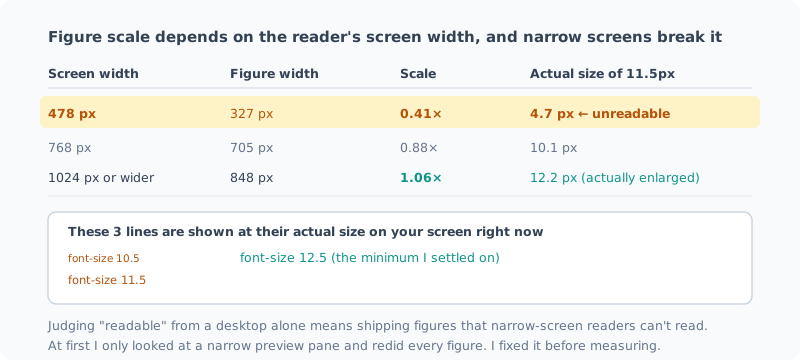
| Screen width | Figure display width | Scale | Actual size of 11.5px |
|---|---|---|---|
| 478 px | 327 px | 0.41× | 4.7 px |
| 768 px | 705 px | 0.88× | 10.1 px |
| 1024 px or wider | 848 px | 1.06× | 12.2 px |
On desktop, the figures weren’t shrinking at all. They were actually enlarged 1.06 times. The body column maxes out at 848px, and an SVG 800 wide is smaller than that.
What shrinks them is a narrow screen. At 478px the scale drops to 0.41×, and 11.5px becomes 4.7px. That’s unreadable.
In other words, the first time I felt “I can’t read this”, it was only because I happened to be looking at a narrow preview pane. The fix (making the text bigger) turned out to be right, but I had redone every figure while misunderstanding the reason.
The three lines in the figure above are shown at their actual size on your screen width right now. If you’re reading on a phone, the 10.5px line should be unreadable.
| Role | px |
|---|---|
| Figure title | 15 (bold) |
| Highlighted numbers | 14–17 (bold) |
| Monospace (paths, commands) | 13 |
| Body text, labels | 12.5 |
| Tick labels | 11.5 |
The color checker looks at colors, but it doesn’t tell you whether the shrunk result is readable.
And as I found out this time, looking at it on a real screen isn’t enough either. The conclusion changes depending on “which screen width you looked at it on”. If you only check on a desktop and decide “it’s readable”, you ship figures your phone readers can’t read.
Mistake 2: The Bar Chart’s Origin Was Partway Along the Axis
Here’s another one, and a worse one.
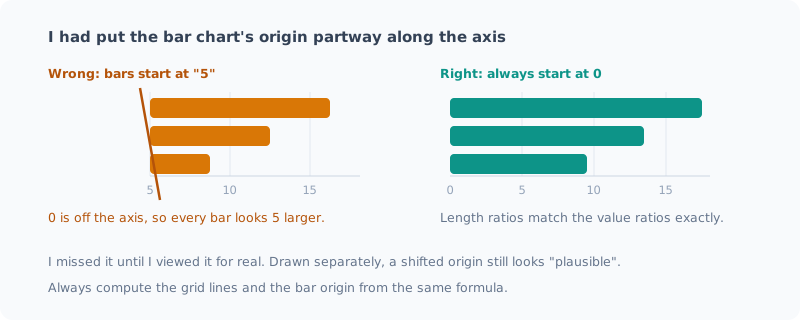
I had drawn grid lines at “5, 10, 15, 20, 25”, and placed the start of the bars on the leftmost grid line (= 5). That means 0 was off the axis.
As a result, every bar looked 5 larger than it was. The ratio between 22.12 and 5.56 looked like 2.4 times instead of 4 times.
The nasty part is that it looks plausible. The ticks and the bars were each drawn correctly on their own, so I didn’t notice until I put them side by side on a real screen.
Here’s the countermeasure:
Compute the grid line coordinates and the bar origin from the same formula.
x0 = 290          # 0 の位置
scale = 16.8      # 1 単位あたりの px
グリッド線: x0 + 値 * scale
バーの幅  : 値 * scale   (起点は必ず x0)
If you write them by hand separately, fixing only one of them throws them out of line.
Rules for Drawing Charts
These are the rules I settled on from those mistakes.
- Bar charts always start at 0. The tick origin and the bar origin must match
- Only one axis. Don’t split quantities with different units onto left and right axes. If you want to, make two figures
- Don’t label every point. Only meaningful ones, like the ends, the maximum and the minimum
- With two or more series, always include a legend. Don’t make readers tell them apart by color alone
- Baselines and “expected values” are gray dashed lines with no saturation. So they can be told apart from the data
- Bars are 20–26px tall with 4px rounded corners, lines are 2px, markers are r=4 with a background-colored outline
“Don’t cram two things with different units into one figure” is a rule I was glad I actually followed. In one post I wanted to show file size next to generation speed, so I simply used small multiples (two figures side by side). With separate axes on the left and right, readers would have had to think “which axis is this?” every time.
Deciding Whether to Include a Figure
I don’t turn everything into a figure. These are my criteria:
Worth including
- Structure and position (what is where, where automation ends and manual work begins)
- Comparisons of quantities (breakdowns, which is bigger)
- Change over time, and the unexpected things that happened along the way
Better left out
- A list of steps — a bulleted list is faster
- Command output — a code block is more accurate
- A relationship that one sentence can describe
I aim for 2–4 figures per post. 16 figures over 8 posts is an average of 2, so I’ve mostly stayed in that range.
Put Numbers in the Alt Text
I don’t end alt with “a figure of …”; I write the facts you can read from the figure.
A bad example:
How I write it now:
It gets long, but the content comes across even where images don’t load, it shows up in search, and it helps when I’m looking for something later myself.
How I Check
I’ve decided on things I always do at the end:
- View it at actual size in a browser. Overlapping text, overflow and misaligned axes don’t show up in a checker
- Look at a narrow screen width too. Desktop alone isn’t enough. Narrow it to around 400px and check whether the tick labels are readable
- Check that the numbers match the body text
- Check that
altcontains the key numbers
To measure step 2, one line in the browser console does it:
const w = document.querySelector('article img').getBoundingClientRect().width;
console.log({ 倍率: w / 800, '11.5pxの実寸': 11.5 * w / 800 });
If you just want to look at it locally, serving public statically is enough:
npx --yes serve -l 4321 <プロジェクト>/publicThe time I skipped this “look at it on a real screen” step was when I made both of the mistakes above. Right after making a figure, I can always read my own figure, so I can’t be trusted.
Summary
- Figures are hand-written SVG. Diffs are readable, and they’re managed together with the post
- Pick the colors once, run them through a checker, then reuse them
- The display scale changes with the screen width. It’s 1.06× on desktop, but drops to 0.41× on a narrow screen. 12.5 / 11.5px is the minimum for text
- Derive the bar chart’s origin and the grid from the same formula. Writing them separately makes them drift apart
- Decide whether a figure belongs. Steps and command output are faster as text
- Look at it on a real screen, including a narrow width
While writing this post, I realized the reasoning behind my own rule was wrong. I had assumed figures “shrink to 0.8× in the body column”, but when I measured, it was 1.06×. The fix was right, so no harm was done, but I learned that the right fix and the right understanding are two different things.
A rule fixed for the wrong reason stops working when conditions change. The value of writing rules down seems to lie less in keeping the steps and more in having the reasoning written down so it can be checked later.
Related Posts
I Measured dev-orchestra: Time per Request, and Findings by Number of Reviewers
With dev-orchestra 1.2.1, I made one small feature request and measured how long it took (about 6 minutes, not counting my approval) and how many findings were reported and accepted with 1, 2, and 4 reviewers. More reviewers meant more accepted findings, but the extra ones were about tests.
Giving dev-orchestra Standing Instructions per Role
I tried instructions, added in dev-orchestra 1.2.1. Standing instructions for the implementer or reviewers written in the repository go into every prompt. I check, with real output, how they are shown, where they go, and how a change to the instructions is treated.
[Released] dev-orchestra: Parallel Work Units and Per-Role Instructions v1.1.0 - v1.2.1
A roundup of dev-orchestra's changes from v1.1.0 to v1.2.1: running a plan as work units side by side, standing instructions per role, questions before the design, and settings for progress reports. If you capture its output on Windows, note the encoding change.