How to Benchmark a Local LLM (with a Checklist)
Introduction
Change a local LLM setting and compare the speed. It’s a common task, but it’s easier to get wrong than you’d think.
While I wrote 15 posts in this series, there were 19 times when the measurement itself was wrong (the retrospective post). This post reorganizes that experience into a procedure. I keep the war stories to a minimum and write down “how to measure”.
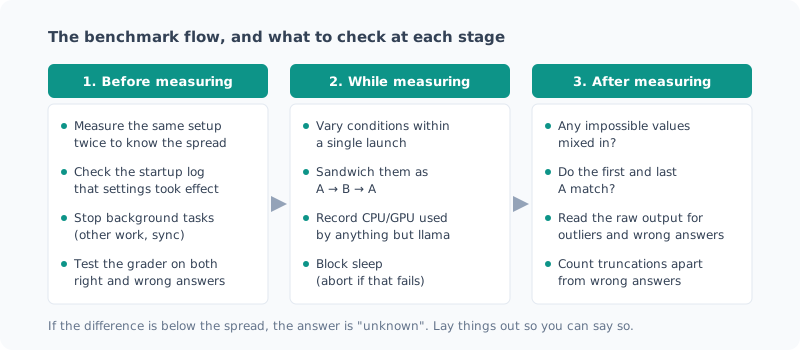
The examples use llama.cpp (llama-bench / llama-server) and PowerShell, but the ideas apply to other measurements too.
1. Before Measuring
Know the Spread First
If you measure the same conditions twice, how much does it move? This is the first thing to check.
In my environment, measuring the same setting in separate launches gave generation speeds of 16.79 and 18.57. That’s about 10%. The difference between the settings I wanted to compare (about 9%) was completely buried in that spread (the benchmark noise post).
If the difference is smaller than the spread, don’t draw a conclusion. Everything else rests on this.
Check in the Startup Log That a Setting Really Took Effect
llama-server sometimes silently disables a setting it can’t use. It doesn’t raise an error, and it still starts.
srv load_model: cache_reuse is not supported by multimodal, it will be disabledI didn’t read this one line, and for 4 days I believed --cache-reuse was in effect.
Before measuring, check the startup log.
Get-Content server.log | Select-String 'not supported|disabled|ignor'If you build it into a measurement script, make it stop when things differ from what you expect.
$mm = [bool](Select-String -Path $log -Pattern 'loaded multimodal model' -Quiet)
if (($mode -eq 'off') -eq $mm) { throw "mmproj の状態が想定と違う(mode=$mode)" }
Stop What Runs in the Background
If something else runs during a measurement, it pollutes the results. These are the ones I actually ran into.
| What interrupted | What happened |
|---|---|
| An auto-start I built myself | A second llama-server started during the measurement, and memory came close to the limit |
| Other work (another AI’s session) | Runs under the same conditions varied by 10% (about 2% after stopping it and measuring again) |
| OneDrive sync | Free space kept shrinking even though I had deleted files |
| PC sleep | A 2.5-minute job took 10 hours in total |
Before starting a measurement, list what could run and stop it. Mechanisms that “start automatically if stopped” are the worst when they kick in during a measurement.
Just stopping the background changed the spread this much (the mmproj post).
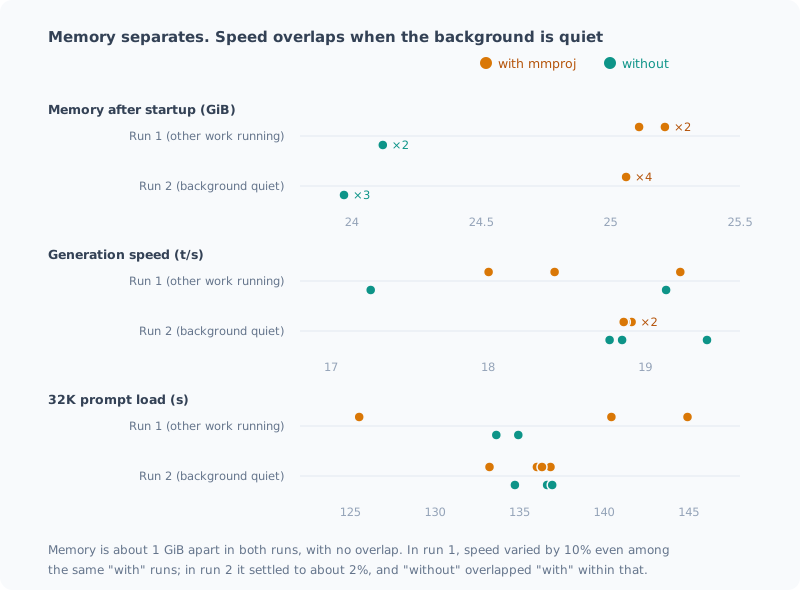
In run 1, the difference between identical conditions was as much as 10%, so I couldn’t tell whether “without” or “with” was faster. In run 2, with the background stopped, the spread shrank to about 2%, and I could say flatly that “the difference is under 3%”.
Test the Grader with Both Right and Wrong Answers
If you measure quality (accuracy), the grading script is also a measuring instrument. Test it on real strings before the real run.
$cases = @(
  @('答え: 4821番', '4821', $true),
  @('答え: 1482番', '4821', $false),   # 別の数字
  @('答え: 48210番', '4821', $false),  # 桁が多い
  @('4821番です', '4821', $false)      # 答えの行が無い
)
foreach ($c in $cases) { if ((Test-Answer $c[0] $c[1]) -ne $c[2]) { throw "採点器が違う: $($c[0])" } }
The key is to test not only “does it pick up right answers” but also “does it reject wrong ones”.
I was marking “53個” (53 items) as wrong with the regex \b53\b (because .NET regex treats kanji as part of a word).
To bound a number, write (?<!\d)53(?!\d) (the thinking post).
2. While Measuring
Vary Conditions Within a Single Launch
Results from separate launches can’t be compared, because warm-up, power and temperature aren’t in the same state. llama-bench lets you list conditions separated by commas, so vary them within one launch.
llama-bench -hf <model> -ngl 99 -fa 1 -p 0 -n 128 -d 0,32768 -ctk f16,q8_0 -r 5Sandwich as A → B → A
Even within one launch, the later a condition was measured, the more it was favored at times, because the state drifts over time. A difference that came out as “+16%” for K quantization was “+6%” when I reversed the order (the 128K post).
The fix is to sandwich it by placing the same condition first and last.
llama-bench ... -ctk f16,q8_0,f16 -r 2 # f16 → q8_0 → f16If the first and last f16 match, you can say nothing drifted in between. If they don’t, I don’t trust that run’s difference.
If you have runs to spare, alternate them like A → B → A → B → A, and compare each B run against the average of the A before and after it. Slow drift cancels out when you sandwich it from both sides.
B の差 = B の値 ÷ (直前の A + 直後の A)÷ 2 − 1When I measured with and without mmproj alternately 7 times, this difference went +2.6%, −0.6% and −0.2%, pointing in different directions, so I could conclude “the difference is under 3%” (the mmproj post).
Record Interruptions
Not just a specific process: record the CPU and GPU used by everything else every 10 seconds.
# プロセスごとの CPU 時間の差分から、llama 以外の使用率を出す
$pct = ($now_cpu - $prev_cpu) / $elapsed_sec / [Environment]::ProcessorCount * 100
# GPU はエンジンごとの使用率を pid で集計し、llama 以外を合計する
Get-Counter '\GPU Engine(*)\Utilization Percentage'
At first I only watched whether llama-server had started, and I missed the interruption from other work. You can only protect against what you watch.
Block Sleep (and Abort If That Fails)
If the PC sleeps in the middle of a long measurement, the timing breaks. Inside the script, block sleep only while that process is alive.
Add-Type -Namespace NT -Name Power -MemberDefinition '[DllImport("kernel32.dll")] public static extern uint SetThreadExecutionState(uint f);'
$ES_CONTINUOUS = [uint32]'0x80000000'; $ES_SYSTEM_REQUIRED = [uint32]'0x00000001'
if ([NT.Power]::SetThreadExecutionState($ES_CONTINUOUS -bor $ES_SYSTEM_REQUIRED) -eq 0) { throw 'スリープ抑止に失敗' }
If you leave out the [uint32] conversion, PowerShell interprets 0x80000001 as a negative number and the call fails.
I didn’t notice this and ran a sleep block that did nothing for 33 minutes. What matters is writing it so it stops when it fails.
For the same reason, make sure you always clean up the server and the monitoring, even if an error occurs midway.
try {
  # 計測の本体
} finally {
  Get-Process llama-server -EA SilentlyContinue | Stop-Process -Force
  Stop-Job $guard -EA SilentlyContinue; Remove-Job $guard -Force -EA SilentlyContinue
}
When I hadn’t written the cleanup, the script crashed on the first question, but the leftover monitoring job made it look like it hadn’t finished, and I didn’t notice for 2 hours. For a long measurement, watch until the first few results are recorded before you wait.
3. After Measuring
Look for Impossible Values First
Before staring at the table and thinking about conclusions, check whether any physically impossible values got mixed in.
- KV quantization makes a difference even though the KV cache is empty (depth 0)
- Depth 0 is slower than the state with 30,000 tokens loaded
- Two runs under the same conditions differ by 10%
- A 2.5-minute job takes 10 hours
Six of my mistakes were found this way. On the other hand, outliers that are “not impossible” don’t get caught here.
Read the Raw Output for Outliers and Wrong Answers
If you only look at the accuracy numbers, it ends with “the model got it wrong”. Read the actual output of the runs that were marked wrong.
| What looked wrong | What it actually was |
|---|---|
| Got T2 wrong with thinking on | Reading the output, it had solved it correctly. The grading covered the whole body |
| “No answer line” on one 16K question | It started writing an explanation before the answer and was cut off by max_tokens 64 |
| Answered a different number at 128K | It answered with the value for a different number whose first 2 characters were the same (a mix-up) |
For that, set up the measurement script to keep the full body when an answer is wrong.
Count Truncations Separately from Wrong Answers
A run cut off at the max_tokens limit (finish_reason is length) may simply have been stopped before it could answer.
Mixing those into wrong answers underestimates the model. Count them separately as “truncated”.
Write the Unit Next to the Number
I once compared GiB (2³⁰) and GB (10⁹) mixed together and nearly wrote “matches within 3%”. Once I made them the same, the difference was 10%. Before writing, check whether the two numbers you compare use the same unit.
Checklist
Before measuring
- Measure the same conditions twice to know the spread. If the difference is smaller than that, don’t draw a conclusion
- Check in the startup log that the settings you added are in effect. Make it stop if things differ from what you expect
- List what could run during the measurement (auto-starts, sync, other work, sleep) and stop it
- Test the grader on real strings for both picking up right answers and rejecting wrong ones
While measuring
- Vary the conditions you compare within a single launch
- Sandwich as A → B → A and check that the first and last A match
- Record the CPU and GPU used by anything other than llama
- Write the sleep block so it stops when it fails. Always clean up, even if it crashes midway
- Watch until the first few results are recorded before you wait
After measuring
- First check for physically impossible values
- Read the raw output for outliers and wrong answers
- Count truncations at the limit separately from wrong answers
- Check that the numbers you compare use the same unit
Summary
- Measure the spread first. If the difference is smaller than that, write “unknown”
- Lay out the conditions you compare within a single launch, sandwiched as A → B → A
- Stop what runs in the background, and record the CPU and GPU used by everything else
- The grader is a measuring instrument too. Test it with both right and wrong answers, and read the raw output for wrong answers
- Write safety measures (sleep blocking, cleanup) so they stop when they fail
What helped most was quieting the background. That alone shrank the spread of the same script from 10% to about 2%.
Related Posts
I Thought My Benchmark Found an Effect, but It Was Measurement Noise
When I tried to verify a settings decision I'd made earlier, I got the opposite result. Just as I was about to celebrate, I noticed something physically odd, measured again, and the original decision was right. This is about why you shouldn't compare benchmarks from separate launches.
I Stretched the Context to 128K, and the Wall Was Waiting Time, Not Memory
I stretched my local LLM's context from 32K to 128K and measured it. The memory shortage I expected never happened, and the reason lay in the model's architecture. The wall I hit instead was prompt ingestion time: just reading 128K takes 21–24 minutes. It also covers how my own auto-start polluted the measurements along the way.
I Measured My Local LLM 13 Times, and the Measurements Were Wrong 19 Times
While writing 13 posts about building and testing my local LLM setup, the measuring side was wrong 19 times: how I compared, bugs in the grader, interruptions from outside, wrong assumptions, and safety mechanisms that weren't working. Counting how I noticed, more than half came from "impossible values" or "raw data". I turn them into a checklist for before measuring.